
How to Make a Hotel Lobby AI Rap Video
Make a viral-style Hotel Lobby AI rap video with AI Rap Video Trend. Upload two photos, pick settings, and generate an orange-booth duo take.
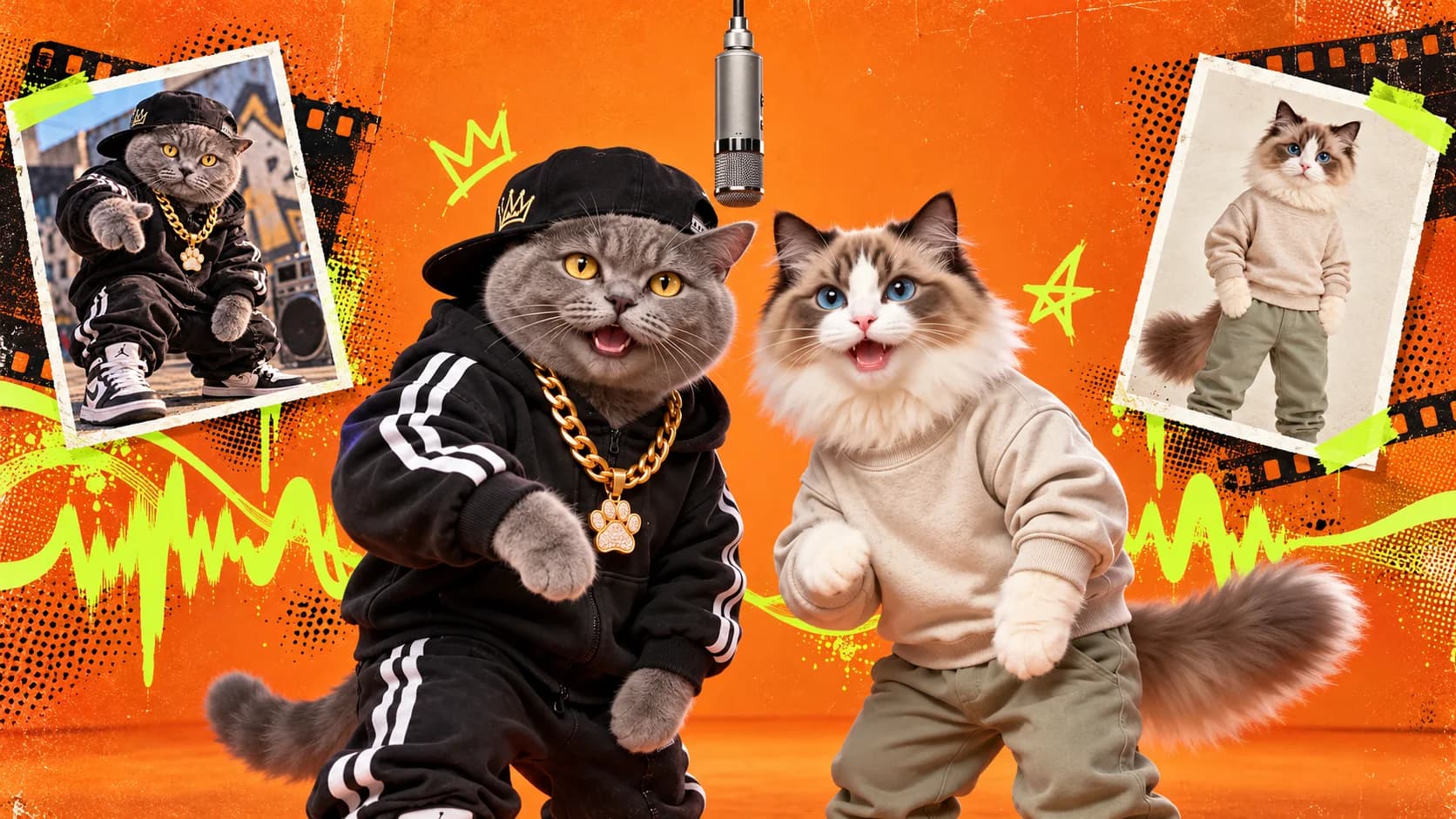
To make a viral-style Hotel Lobby AI rap video, use AI Rap Video Trend's Hotel Lobby AI video generator: upload two photos, choose your video settings, and generate. Photo one guides the performer on the left; photo two guides the performer on the right. The template creates a new rap-duo scene in the recognizable orange-booth style.
You do not need to write a video prompt. Choose the template, add your photos, and set the options shown in the generator.
What is the Hotel Lobby AI rap video trend?
The format is easy to recognize: two performers trade lines beside one hanging microphone in front of a flat orange wall. Its visual starting point is Quavo and Takeoff's 2022 “Hotel Lobby” performance on A COLORS SHOW.
With AI Rap Video Trend, you can make your own take on that duo setup using photos of two people. The Hotel Lobby AI template generates a new scene from those photos; it does not paste your faces into the original performance.
How do I make the viral Hotel Lobby AI rap video?
1. Choose your duo and prepare two photos
Pick the two people you want in the video: friends, a partner, siblings, or another duo. You do not need a photo of both people together because the template has a separate upload slot for each performer.
For the clearest result, choose one well-lit photo per person. Keep each face visible, in focus, and unobstructed. Similar lighting and framing can help the duo feel like they belong in the same scene. Only upload photos you have permission to use.
2. Open Hotel Lobby AI and assign left and right
Go to Hotel Lobby AI and select the two-photo template. Add the person you want on the left first, then add the person for the right. The upload order guides where each performer appears in the video.
The template supplies the orange booth, hanging microphone, and duo performance direction, so you can start without writing a prompt.
3. Choose your video settings
The generator lets you choose from the available duration, resolution, aspect ratio, and AI-audio options. Hotel Lobby AI starts with a 15-second, 720p, vertical 9:16 setup, but those are defaults: you can select 10 or 15 seconds, 480p or 720p, 9:16 or 16:9, and turn generated AI audio on or off.
Review the credit cost shown in the generator before you submit. The settings stay in your control; you can pick the format that fits where you plan to share the video.
4. Generate, preview, and download
Select Create Hotel Lobby AI Video to start. The generator switches to Your result to show the task status. You can leave the page while it runs; the task is saved in My videos.
When the video is ready, preview it and check both faces, the left-right positions, movement, framing, and audio. Download the result when it looks right to you. AI generations can vary, so review the finished clip before posting.
What should I write when I post my Hotel Lobby AI video?
Keep the caption short and make the relationship or joke the first thing people see. Tag the other person, then put a few relevant hashtags at the end. Here are copy-ready ideas:
Best friends
we never practiced this once 🎤 @yourfriend
#hotellobbyai #hotellobby #bestfriends #duo
Couples
happy anniversary, here’s our debut single 🧡 @yourperson
#hotellobbyai #hotellobby #couplegoals
Siblings
mom said we have to share the mic 🎤 @yoursibling
#hotellobbyai #hotellobby #siblings
These are relevant tag suggestions, not a promise of reach. Choose the caption that sounds like you, and select vertical 9:16 in the generator for a phone-first post on TikTok, Instagram Reels, or YouTube Shorts.
Tips for a better Hotel Lobby AI video
- Use two separate photos, one for each performer.
- Add the left performer first and the right performer second.
- Make sure faces are well lit, sharp, and easy to see.
- Choose 9:16 for a vertical social post, or 16:9 if you prefer a landscape video.
- Preview the finished result before downloading or sharing it.
FAQ
How many photos do I need for Hotel Lobby AI?
The Hotel Lobby AI template uses two photos: one for the left performer and one for the right performer.
Does the first photo go on the left or the right?
The first photo guides the performer on the left. The second photo guides the performer on the right. Add them in that order.
Can I change the length or aspect ratio?
Yes. The 15-second vertical 9:16 setup is the default, and the generator lets you choose the available duration, resolution, aspect ratio, and AI-audio setting before you create the video.
Will my Hotel Lobby AI video go viral?
No generator can guarantee views or virality. The template helps you make a personalized take on a recognizable duo format; how a post performs depends on the video, its audience, and platform distribution.
Ready to make yours? Create your Hotel Lobby AI rap video with two photos.
 CONCEPT ART
Best AI Rap Video Generator
Looking for the best AI rap video generator? Compare tools by output, then use AI Rap Video Trend to make photo-led rap videos from trend templates.
Read article CONCEPT ART
AI Tool for Viral TikTok Rap Videos
Looking for an AI tool for viral TikTok rap videos? AI Rap Video Trend turns photos into trend-style rap performances with ready-to-use templates.
Read article